
Woodo controls
Orbit the toy stage, grab a piece, and seat it like a real wooden figurine.
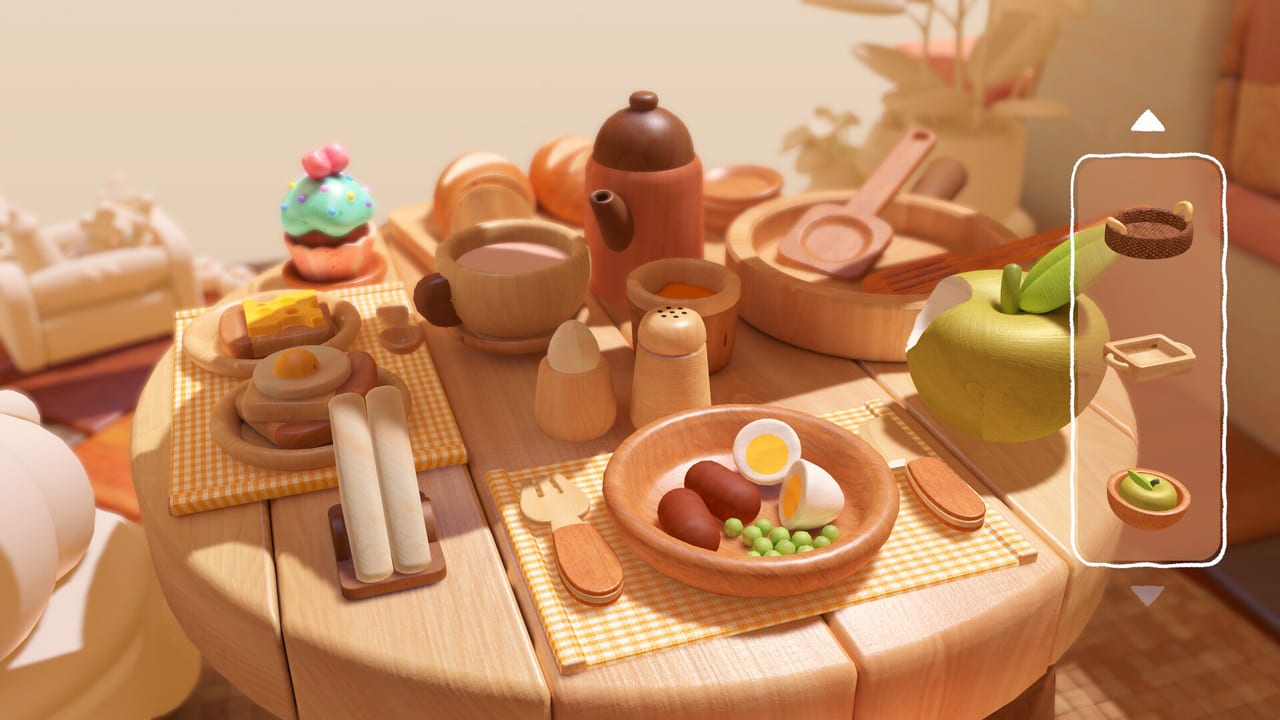
Woodo is a spatial toy. Most “I cannot find the piece” complaints are camera complaints. This page covers how the demo and trailers handle looking, grabbing, and seating objects on PC, PlayStation 5, Xbox Series, Nintendo Switch, and Nintendo Switch 2. Pair it with Getting Started for the loop and puzzle tips for hidden sockets.
Tiny Monks Tales has not published a one-page official binding chart. Prompts on screen always win. What follows is the control logic players actually use in the playable demo and in the breakfast-table gameplay footage.
Mouse and keyboard (PC)
The mouse is the intended instrument on Steam. You point at a socket the way you would lower a figurine onto a peg.
- Look / orbit — click-drag on empty wood to spin the diorama. Always complete a full rotation before you accuse the sidebar of holding a junk piece.
- Pan — shift the stage so a far corner comes closer. Breakfast tables and shops are deeper than they look in a trailer crop.
- Zoom — wheel in until a drawer pull, cup handle, or cat ear fills the frame. Many sockets only read at close range.
- Select — click a sidebar piece, then click or drag onto the matching silhouette.
- Peek — some lids, drawers, and cloths are interactable. If a pale patch sits inside furniture, try opening it before you hunt the floor.
- Cancel — drop the piece back to the stash if the ghost silhouette never appears. Forcing a near-miss wastes time; the game wants an exact seat.
A second monitor or a wiki tab with the scene list is useful, but do not keep a full spoiler overlay in your eyeline on the first pass. The click is the toy.
Gamepad (PC, PS5, Xbox, Switch)
The demo launched with controller support. Early notes said rumble was unfinished and off by default; treat vibration as optional flavor, not a hint channel, until a launch patch says otherwise. Check news after September 16.
Typical pad logic in this genre, matching what the demo overlay shows:
- Right stick — orbit. Make this your idle habit. A slow orbit finds more sockets than a frantic sidebar cycle.
- Left stick — pan or move the cursor, depending on the current prompt.
- Triggers / bumpers — zoom in and out. Zoom is not optional on cupboards.
- Face button confirm — pick up or place.
- Face button cancel — return a piece to the stash.
- View / touchpad / minus — pause, settings, and (when offered) assistance.
If analog orbit feels slippery, lower camera sensitivity in settings before you lower puzzle difficulty. Most mis-seats on a pad are overshoot, not wrong objects.
Nintendo Switch and Switch 2 mouse
Woodo is a download title on Switch with a free upgrade path to Switch 2 for people who buy the Switch 1 version. That matters for controls: Switch 2 Joy-Con 2 mouse support is a featured selling point. If you already play other Switch 2 mouse games, Woodo should feel closer to PC than a typical dual-stick hidden-object title.
On a Switch 1 pad, expect the same gamepad loop as Xbox and PlayStation. Play in tabletop or docked if you can. Handheld zoom on a dense breakfast table is readable, but orbit plus grab is kinder on a bigger screen.
Camera habits that actually solve puzzles
- Orbit first, stash second. Look for pale wood and empty silhouettes before you pick a piece. The sidebar is a toolbox, not a quest log.
- Get low. Many sockets live on the floor side of a table or behind a bench leg. A trailer-height camera hides them.
- Get high. Tops of cabinets, loft beams, and ship rigging show up in screenshots. If the stash still holds a bird or a lantern, look up.
- Treat furniture as rooms. Drawers, chests, and ovens are dioramas inside the diorama. The demo walkthrough dusty loft is built on that idea.
- Zoom until the grain is ugly. If you cannot see a peg, you cannot seat a peg.
Assistance, audio, and accessibility
Woodo can offer assistance when you stall. That is not a spoiler penalty. Use it after two full orbits. Combine hints with audio: the confirm click is a better success signal than the color bloom if you are color-shy. Preview writers who enjoy ASMR often drop music and raise effects; that also helps you hear a successful seat versus a rejected hover.
There is no competitive leaderboard, so remap whatever the platform overlay allows. If you play one-handed, mouse on PC or Joy-Con mouse on Switch 2 is kinder than a full dual-stick orbit.
After you can look around
Once orbit and grab feel boring, you are ready for the real puzzles. Open puzzle tips for nested objects and pale-patch reading. If a demo room still will not complete, use the demo walkthrough. If the story names people you do not recognize, meet Foxy and Ben the Frog.
Buying on a weak laptop? Check system requirements before you worry about control schemes. A slide-show orbit makes every socket harder than it should be.
Frequently Asked Questions
Quick answers to the most common questions.
What is the best way to play Woodo?
Mouse on PC, or Switch 2 Joy-Con mouse if you are on Nintendo hardware. A gamepad works; orbit slowly and zoom more than you think.
Does Woodo support a controller?
Yes. The demo includes gamepad support on PC and consoles. Rumble started disabled in early demo builds.
How do I look behind furniture?
Orbit a full 360, pan to the corner, then zoom. Open drawers and lids; many sockets are inside furniture, not on the floor.
Where is the hint button?
Use the in-game assistance option when you stall. Screen prompts differ by platform; the pause menu is the reliable entry.